Claude
Add zkipster as a custom connector under Settings, then Connectors. Enter the server URL and client ID, then sign in with your zkipster credentials to authorize it. Connectors added here also work in Claude Cowork.
ZKIPSTER MCP
Let your AI take on the time-consuming tasks, freeing you up for the decisions only you can make. Connect zkipster to Claude and ChatGPT, and your event history, RSVP statuses and guest records are ready when you are.

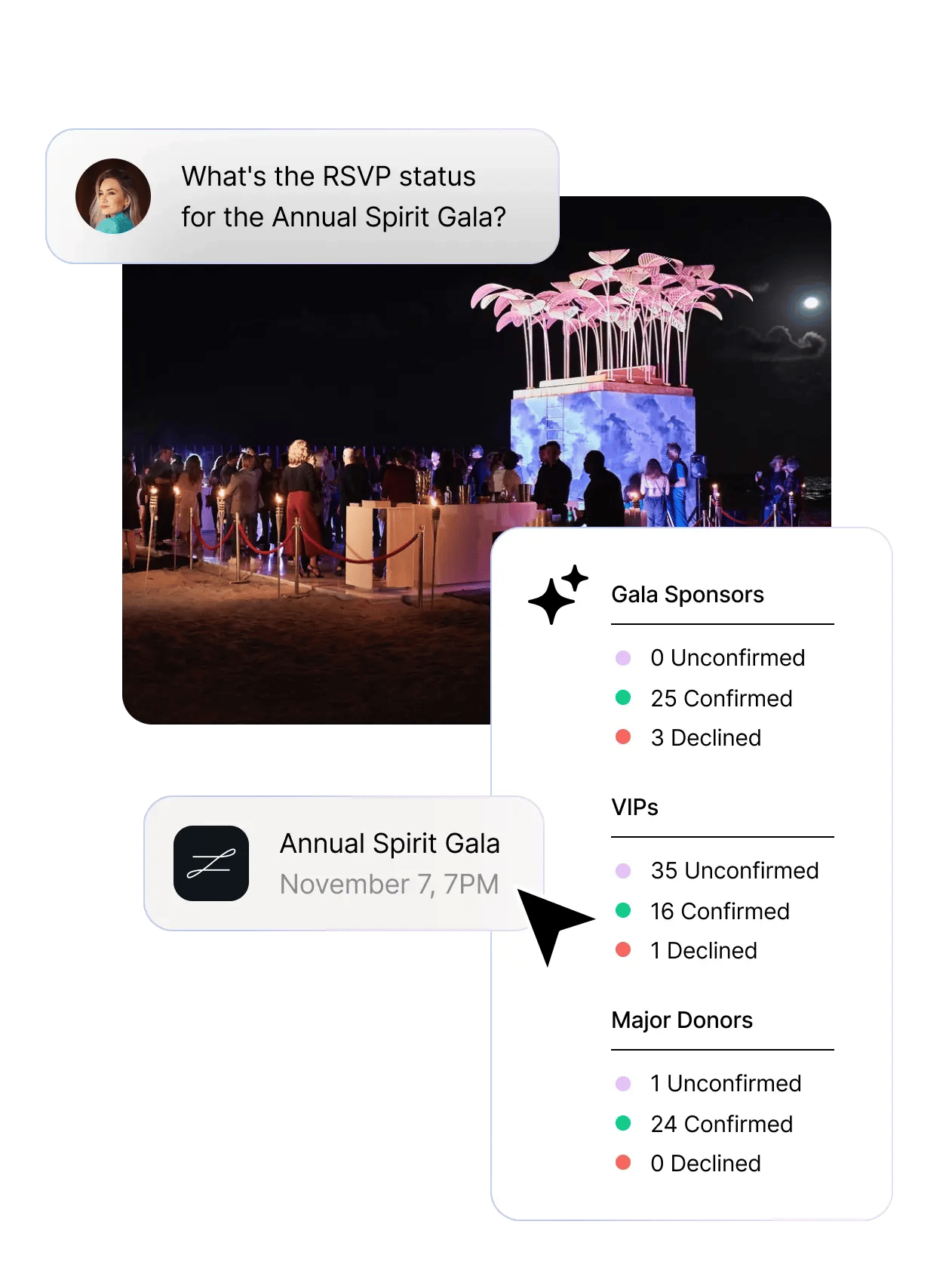
zkipster MCP connects your preferred AI assistant to zkipster Events and Audience. Start with a simple prompt in your chat, and the answer comes back from your zkipster account.

In plain language, as if you were talking to a colleague.
Real-time RSVP, seating and check-in status from Events. Guest preferences and event history from Audience. Structured answers, drawn securely from your own data, with no exporting or switching tabs.
Ask a follow-up question, or ask your AI to act: tag contacts, add a guest list, create your next event; set up an RSVP status summary to be sent to you each evening.
Any AI tool can write you a generic event plan. zkipster MCP builds one based on your own events.
Connect your AI to zkipster for answers drawn from who you invited, the RSVPs you collected, the seating charts you designed and the guests you actually checked in.
Every event you host gives your AI more to draw from. Guest lists, seating and check-in data in Events; guest history, relationships and preferences in Audience. Your next event begins where your last one ended.
You authorize the connection yourself, your AI only acts when you ask, and it cannot delete anything.
Add zkipster as a custom connector under Settings, then Connectors. Enter the server URL and client ID, then sign in with your zkipster credentials to authorize it. Connectors added here also work in Claude Cowork.
Everything you need to connect: server URL, client ID and step-by-step guidance for each supported AI assistant.
What events do I have coming up in the next three months?
Events
For [Event Name], how many guests are invited, confirmed, declined and yet to respond?
Events
For the contacts in [List Name], who hasn't attended an event in the last two years, and who's attended the most events?
Audience
Tell me about [Guest Name]: which events they've attended and what we know about them.
Events & Audience
Compare [Event Name] and [Event Name]. Which had the better turnout?
Events
What's changed on [Contact Name]'s record recently?
Audience
Filter by:
Before: Sift through last year's event reports and try to remember what worked.
With MCP: Ask your AI for RSVP and attendance figures from previous instances of the same event.
I'm planning this year's [Event Name]. Pull the last [Number] years of this event from zkipster: RSVPs vs. final attendance, and guest lists with the strongest and weakest turnout. Summarize what to expect and suggest anything I could do differently.
Before: Add custom fields manually, choosing the format and options one at a time.
With MCP: Describe a field and let your AI create it.
For [Event Name], add a checkbox custom field named Dietary Requirements with the options Vegetarian, Vegan, Pescatarian, Gluten Free, Nut Allergy, Dairy Free, Halal, Kosher.
Before: Draft the seating chart, gather feedback from colleagues and stakeholders, and rework it as RSVPs change.
With MCP: Quickly work through seating iterations with your AI as a sounding board.
Review the seating for [Event Name]. Tell me who's at each table, where there's still space, and how the total number of seats compares to the guests invited. Name any guests I should seat together or keep apart, then suggest a better arrangement for Table [Number].
Before:
Base the seating chart on the floor plan and your memory of the venue.
With MCP: Ask your AI about the space itself, not just the table layout.
For [Event Name], review the floor plan and seating. Which tables are furthest from the stage, which are closest to the exits, and where would you seat our sponsors and award winners for the best experience?
Before: The zkipster app provides a real-time view of check-in status at the current event.
With MCP: Ask which of the guests who have yet to arrive are likely to show up, and which are likely to be no-shows.
For [Event Name], who has confirmed but not yet checked in? Of those, whose event attendance rate is below [Low %] and whose is above [High %]?
Before: Search the zkipster app for a guest’s current status while an event is in progress.
With MCP: Access the guest’s full event history without manual searching.
Find [Guest Name] in [Event Name]. What table are they seated at? Which of our previous events have they been invited to and attended?
Before: Export a boilerplate session report, then manually reformat to display the data the way you need it.
With MCP: Ask for a customized session report.
For [Event Name], create a table showing every guest with the sessions they were allocated and checked into displayed in separate columns. Tell me which sessions were the most and least popular.
Before: Build the list you have in mind by selecting and combining filters
With MCP: Describe the list in your own words.
Find contacts in [List Name] who are based in [City] and attended at least [Number] of our events before [Year] but none since. Save them as a list called [New List Name].
Before: The report gives you the numbers, the export gives you the detail, and you create the event recap yourself.
With MCP: Request a single summary of all your post-event data.
Summarize [Event Name]: the number of guests invited, RSVPs, final attendance and no-shows, broken down by guest list. Indicate which lists had the best and worst attendance.
Before: Filter the guest list after the event to see who didn't arrive.
With MCP: Ask who missed the event, and if that's to be expected.
For [Event Name], list the guests who confirmed but didn't check in. Which of them have missed events before, and which usually attend?
Before: Event attendance shows as a lifetime percentage.
With MCP: Ask how event attendance has changed over time
Which of our contacts in [List Name] attended regularly until [Year] but haven't been to an event since, and which have attended events more frequently over the past [Timeframe]?
Before: Review the detail in each contact profile individually.
With MCP: Ask about several contacts at once.
Compare [Contact Name], [Contact Name] and [Contact Name]. Which of our events has each attended or declined, and what do we know about their preferences and relationships? Based on this, who would be the best candidates to invite to our next fundraising event?
No use cases match your filters.
MCP stands for Model Context Protocol: an open standard that lets AI assistants like Claude and ChatGPT connect securely to the tools you already use and work with your data, not just what you type into a chat.
zkipster MCP is our own MCP server built on this standard. Once it's connected, your AI assistant can answer questions about your events and guests in plain language, and carry out tasks in your account, without you needing to open zkipster. zkipster is one of the first event platforms to offer this, and it creates far more value for AI in your event planning than a chatbot working from general knowledge alone. An MCP connection is only as valuable as the data behind it.
zkipster MCP launches with Claude and ChatGPT. Add zkipster as a custom connector in either tool, using the server URL and client ID. Learn more in the setup guide in the Help Center.
Answer questions about your events, guest lists, RSVPs, sessions, seating and check-in in Events, and about contacts and their attendance history in Audience. The zkipster MCP can also make changes including creating events, guest lists and custom fields, updating guest details, tagging contacts and building lists.
zkipster MCP cannot delete events, guest lists, guests, sessions or custom fields, and it can't manage teams, users or permissions.
Setting up zkipster MCP requires the Integrations account permission, so access is controlled at the account level. How your AI then handles your data is governed by your own agreement with the provider.
Yes. You can ask your AI to run a recurring check, such as a daily summary of newly confirmed guests, and have it sent to you or your team. In Claude, recurring workflows like this run in Claude Cowork through the same connection.